
When I first started working with 3ds Max rendering, I quickly realized that creating realistic visuals was not just about modeling; it was about how I could bring those models to life through light, materials, and render engines. My early attempts were frustrating because I didn’t understand how to configure render settings properly. The render times were painfully long, and the results lacked the detail I wanted. I remember one project where I was tasked with producing product designs for a client, and the reflections on the surfaces looked flat and unrealistic. That was the moment I knew I had to master rendering tools inside 3ds Max.
Over time, I learned how to balance CPU rendering and GPU rendering, how to use global illumination effectively, and how to optimize rendering times without sacrificing high resolution. This guide is a reflection of the problems I faced and the solutions I found, so others can save time and avoid the same mistakes I made.
Can You Render in 3ds Max?
Yes, you can render directly in 3ds Max. The built-in rendering tools gave me a starting point, but I quickly realized that choosing the right render engines was critical. For smaller projects, I relied on CPU rendering because it handled complex calculations with accuracy, especially when working with irradiance maps and light cache. However, when I needed faster results for animations or game development environments, GPU rendering became my go-to option. If you’re using GPU rendering, having access to powerful cloud GPU servers can dramatically speed up your renders and reduce local hardware strain.
The advantages of having both options available meant I could adapt to specific needs – whether I was working on detailed product designs or large-scale animations. My first successful render in 3ds Max showed me that with the right setup, the software could handle everything from simple materials to complex displacement and reflections, making it a powerful tool for any workflow.
How to Set Up 3ds Max for Fast and High-Quality Rendering
When I first started configuring 3ds Max rendering, I often struggled with long rendering times and inconsistent results. I quickly realized that render engines were not all the same, and each had advantages depending on my specific needs. For example, when I worked on high resolution product designs, I needed engines like V-ray or Arnold that could handle global illumination and reflections with precision. On the other hand, for environments in game development, I leaned toward engines such as Redshift or Octane, that could save time and manage large-scale scenes efficiently.
Not sure how 3ds Max compares to other software? See: Blender vs 3ds Max or 3ds Max vs Maya.
Adjusting render settings was the real breakthrough. I learned that using light cache and irradiance map together gave me smoother lighting while reducing render time. Displacement mapping added incredible detail to surfaces, but I had to balance it carefully to avoid slowing down the workflow. I also discovered the importance of open standards, which allowed me to share files across different pipelines without compatibility issues. By refining these settings, I created a workflow that delivered animations, environments, and product designs with both efficiency and quality.
Visual Effects That Improve Renders in 3ds Max
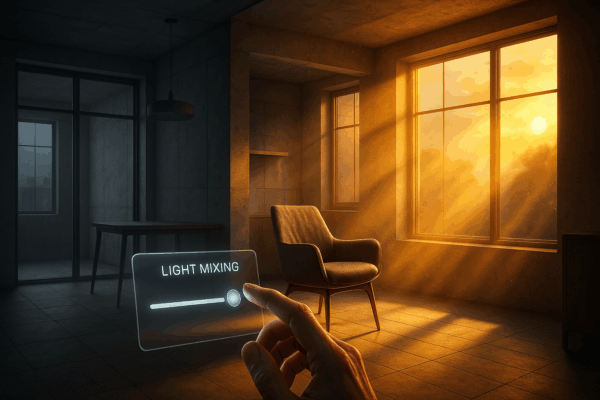
Once I had my configuration optimized, I began exploring visual effects to enhance my renders. Light mixing was one of the most useful tools I discovered, allowing me to adjust lighting moods after rendering and save time on revisions. Global illumination gave my animations and environments a natural look, while reflections and displacement added realism and depth. Materials also played a huge role – choosing the right ones could completely transform the appearance of a scene.
What stood out to me was how visual effects could adapt to specific needs. In game development, I used them to create immersive environments. For animations, I focused on effects that kept rendering times manageable while maintaining continuity. And for product designs, I emphasized high resolution and detail to highlight the advantages of the design. Each effect served a purpose, and by combining them strategically, I was able to deliver productions that consistently impressed clients.
How to Render Animation in 3ds Max: Best Practices
When I first attempted to render animation in 3ds Max, I underestimated how demanding it would be on both hardware and workflow. The rendering times were overwhelming, and I often had to restart sequences because of small mistakes in materials or environments. To solve this, I began preparing my animations more carefully. I organized assets, checked materials for consistency, and tested lighting setups with light cache and irradiance map before committing to full renders. This preparation saved me valuable render time and reduced errors during the rendering process. For heavy animation workloads, I often offload final frames to a cloud render farm to save time and avoid overloading my local hardware.
Managing render times became my next challenge. For complex animations, I relied on GPU rendering to speed up the process, while CPU rendering was my choice when I needed precise global illumination and displacement effects. By balancing both, I could save time without sacrificing high resolution or detail. I also learned to break animations into smaller sequences, which made troubleshooting easier and ensured continuity across frames. Using open standards for file formats allowed me to integrate my animations into larger productions, especially in game development pipelines where compatibility was critical. Over time, I developed a workflow that gave me both efficiency and quality, no matter the specific needs of the project.
Key Advantages of 3ds Max Rendering
Looking back, the advantages of 3ds Max rendering became clear through my experiences. The flexibility of switching between CPU rendering and GPU rendering gave me control over render times depending on the project. The rendering tools and render engines allowed me to adapt to different productions, whether I was working on animations, environments, or product designs. Visual effects like reflections, displacement, and global illumination gave my work a professional polish, while light mixing helped me save time during revisions.
Another advantage was the ability to work with open standards, which made collaboration easier and ensured my renders could be used across different platforms. When needed, I also scaled rendering performance using scalable infrastructure like IaaS explained to reduce the load on my local hardware and speed up the workflow.
The level of detail I could achieve with high resolution outputs impressed clients and highlighted the strengths of my designs. Whether for game development, animations, or product designs, 3ds Max rendering consistently met my specific needs and gave me the confidence to deliver final outputs that looked professional and efficient.
Final Thoughts on 3ds Max Rendering
Looking back at my journey with 3ds Max rendering, I see how every challenge I faced pushed me to find better solutions. From struggling with long rendering times to mastering render engines and rendering tools, I learned how to balance efficiency with high resolution and detail. Visual effects like global illumination, reflections, and displacement gave my work a professional edge, while open standards ensured my productions could integrate seamlessly into larger pipelines. Whether I was working on animations, environments, or product designs, the advantages of 3ds Max rendering always came through. Today, I can confidently say that with the right render settings and workflow, 3ds Max can meet the specific needs of any production, saving time while delivering professional results.
Sources:
- Autodesk 3ds Max Overview
- Autodesk Knowledge Network
- Chaos V-Ray for 3ds Max
- Arnold Renderer for 3ds Max
- Corona Renderer Help for 3ds Max
- Redshift Renderer Docs
- Unreal Engine for Game Development
- Autodesk AREA Community
Frequently Asked Questions
What is the difference between CPU rendering and GPU rendering in 3ds Max?
From my experience, CPU rendering is slower but provides more accuracy with global illumination, irradiance map, and displacement. GPU rendering, on the other hand, is much faster and ideal for animations or environments where render times need to be reduced. I often switched between them depending on the specific needs of my 3ds Max project.
How can I save time when rendering in 3ds Max?
I saved time by optimizing render settings, using light cache for smoother lighting, and breaking animations into smaller sequences. Light mixing also helped me adjust lighting moods without restarting renders, which reduced rendering times significantly.
What render engines work best for specific productions?
For product designs requiring high resolution and detail, I prefer V-Ray, Arnold, or Corona, which support advanced reflections and global illumination. For game development environments, I use Redshift, V-Ray GPU, or Octane for their speed and compatibility. For animations, I rely on Redshift or V-Ray to balance fast rendering with visual consistency across frames.
How do visual effects improve the quality of renders?
Visual effects like reflections, displacement, and global illumination added realism and depth to my renders. Materials and light mixing allowed me to adapt to specific needs, whether for animations, environments, or product designs. These effects gave my productions a professional finish.