

Introduction: First Impressions of V-Ray 7
When I first heard about V-Ray 7, I was skeptical. Over the years, I’ve worked with many versions of V-Ray, and while each update brought improvements, few truly changed my daily workflow. As someone who spends hours fine-tuning lighting, materials, and composition to achieve the highest quality results, I needed more than marketing claims – I wanted practical features that could save time, boost realism, and make collaboration easier.
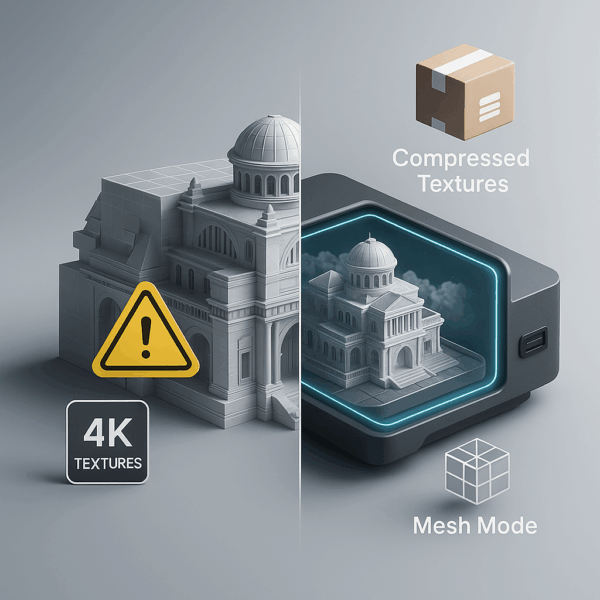
From the first project I tested, I realized that V-Ray 7 wasn’t just another incremental update. It delivered real performance and workflow gains. One of my biggest challenges has always been balancing speed and detail. In older releases, I often had to choose between faster rendering and maintaining resolution. The new GPU rendering enhancements in V-Ray 7 solved that problem. Thanks to compressed textures mode and mesh mode, I could now work on larger scenes without the system slowing down. This was a real game-changer for anyone producing complex 3D visualizations.
Another long-standing frustration was the lack of flexibility when clients requested last-minute changes. Previously, even a small adjustment to lighting or materials could mean re-rendering an entire frame. The new V-Ray Frame Buffer with masking support for lens effects changed everything. Now I can make localized edits directly inside V-Ray, saving hours and keeping feedback loops fast and productive.
What stood out most was how this version of V-Ray combined creative control with technical efficiency. Tools like procedural clouds, updated V-Ray Sky, V-Ray Decal, and custom light decay added realism and flexibility without extra complexity. For example, I once struggled to add weathering to a building façade; with V-Ray Decal, I projected it directly onto the surface in minutes.
In short, V-Ray 7 isn’t just about rendering faster – it’s about working smarter. Its new features give artists the flexibility to refine lighting, manage feedback, and produce professional results more efficiently than ever.
If you’re new to 3D rendering or want to understand the fundamentals behind tools like V-Ray, check out What Is 3D Rendering: The Ultimate Guide for 3D Artists and Designers before diving into the technical details below.
Key Features in the Latest V-Ray 7 Release
After testing V-Ray 7 on several production projects, it became clear that every improvement serves a specific need – speed, control, and realism.
Here are the new V-Ray 7 features that made the biggest difference in my workflow:
V-Ray 7 GPU Enhancements
The improvements to V-Ray 7 GPU rendering are among the most impactful in this release. With compressed textures and mesh mode, I can handle large, detailed environments while keeping performance smooth. These updates make it possible to render high-resolution 3D images faster and with less memory usage – a huge advantage when working on complex scenes.
For artists using powerful hardware or cloud GPU infrastructure, V-Ray 7 GPU rendering is not only faster but more stable. It’s ideal for handling massive architectural, animation, or product visualization projects without hitting technical limits. If you’re considering scaling your rendering power, check out Benefits of V-Ray GPU Rendering to see how GPU acceleration complements V-Ray 7’s performance upgrades.
And if you’re new to GPU workflows, read What Is GPU Rendering and How to Use It to understand how it works and why it’s transforming modern rendering pipelines.
V-Ray 7 Frame Buffer Updates
The redesigned V-Ray 7 Frame Buffer (VFB) quickly became one of my favorite additions. It now includes masking support for lens effects, layer-based color corrections, and exposure control, allowing me to refine specific areas of a render without re-rendering the entire scene. These new controls make non-destructive editing possible directly inside V-Ray – letting me adjust highlights, reflections, or tones faster than ever. For artists balancing multiple drafts or client feedback, this upgrade alone saves hours of post-production work.
Procedural Clouds and Updated V-Ray 7 Sky
Creating realistic outdoor lighting used to rely heavily on HDRIs or post-processing. The new procedural clouds and updated V-Ray 7 Sky completely changed that. I can now simulate weather conditions, time-of-day transitions, and atmospheric depth dynamically – all within the renderer. Whether it’s a bright midday shot or a dramatic sunset, these tools add natural light variation and depth without importing external textures. It’s especially useful for architectural visualization, where lighting realism defines the mood of the scene.
V-Ray 7 Decal and Custom Light Decay
The V-Ray 7 Decal tool quickly became one of my go-to features. Instead of editing geometry, I can project surface details like dirt, cracks, posters, or labels directly onto objects. It’s non-destructive, fast, and accurate – perfect for adding realism without extra modeling. Meanwhile, Custom Light Decay gives precise control over how light intensity fades in a scene. I can fine-tune falloff to match real-world lighting or create artistic effects. Together, these tools improve both efficiency and physical realism, helping me achieve believable results with less effort.
For high-quality renders or larger projects, combine these tools with Cloud GPU Servers or a V-Ray Render Farm to accelerate your workflow and reduce local system strain.
V-Ray 7 for 3ds Max: New Features
When I began testing V-Ray 7 for 3ds Max, I immediately noticed how much smoother the workflow felt. In previous versions, I often struggled to maintain the right balance between composition quality and rendering speed. The new V-Ray 7 tools for 3ds Max completely changed that – giving me more control over materials, render elements, and masking options.
These aren’t just minor tweaks – they’re thoughtful improvements that directly impact real production work.
V-Ray 7 Material System Improvements
One of the most impressive changes in V-Ray 7 for 3ds Max is the updated V-Ray Material system. In earlier versions, I often had to layer multiple shaders to achieve realistic surface results. Now, I can simulate layered coatings, imperfections, and microdetails directly within a single material setup.
This simplification saves hours of manual tweaking and reduces node complexity – while improving realism. The reflections and refractions now behave more physically accurately, especially when combined with V-Ray light sources and HDRI environments. For example, I recently worked on a product visualization where the client wanted a highly polished chrome finish with slight imperfections. In older V-Ray builds, this required multiple shader layers and fine-tuning. In V-Ray 7, I achieved the same realism in minutes.
This update gives you a faster and more intuitive way to create lifelike materials – no more endless trial and error. If you’re experimenting with GPU-based materials, try combining this with V-Ray GPU Rendering for even faster previews and test iterations.
V-Ray 7 Render Elements and Masking Enhancements
The render elements and masking tools in V-Ray 7 for 3ds Max are another area of major improvement. I rely on render passes to fine-tune images in post-production, and these new options give far more precision and flexibility. Now, I can adjust reflections, lighting, shadows, or diffuse layers individually without needing to re-render the entire image. This saves enormous time, especially when clients request subtle changes after reviewing drafts.
The masking support for lens effects is another standout addition. I can isolate specific areas – like a chandelier, window reflection, or metallic accent – and apply bloom or glare exactly where needed. This allows me to highlight focal points in an image without overexposing the rest of the scene.
These updates give me the kind of selective control I used to rely on external post tools for – but now, it’s all built directly into V-Ray 7’s Frame Buffer.
V-Ray 7 for Maya New Features
When I started exploring V-Ray 7 for Maya, it became clear that this update was built with artists and animators in mind. Maya has always been my go-to for handling complex animation scenes and simulations, but rendering them efficiently was often a challenge. With V-Ray 7, the workflow finally caught up to the creative side – bringing smoother performance, better realism, and more collaborative flexibility.
V-Ray 7 Physical Camera and Lens Effects
The physical camera improvements in V-Ray 7 for Maya made one of the biggest differences in my projects. In previous versions, achieving realistic depth of field, bokeh, and motion blur required extra manual work or compositing tricks. The new camera behaves far more like a real DSLR – allowing me to control shutter speed, ISO, and aperture with precision. This made a huge impact when working on cinematic animations and product close-ups. Instead of endlessly adjusting exposure or guessing how depth would render, I could now match real-world photography settings and instantly preview the results.
The new lens effects support, including bloom, glare, and chromatic aberration, added that final layer of polish. What truly elevated the workflow, however, was the integration of masking in the V-Ray Frame Buffer (VFB). I can now isolate specific elements – like a glowing screen, metal edge, or a reflection – and apply lens effects only where needed.
For artists focusing on cinematic realism, these improvements save time and eliminate much of the post-production back-and-forth.
V-Ray 7 Cloud Collaboration and Workflow Enhancements
Another standout improvement in V-Ray 7 for Maya is the cloud collaboration system. In large projects, I often work with teams scattered across different time zones, which used to make feedback and iteration painfully slow. Now, I can upload renders directly to the cloud, share previews instantly, and receive client or team comments in real time – all from within Maya. This update alone has streamlined communication and made it easier to integrate client feedback without redoing entire renders. It also opened the door to remote rendering workflows, especially when combined with cloud GPU servers or a render farm setup.
If you’re working with high-resolution scenes or animations, you can connect V-Ray 7’s cloud collaboration tools with MaxCloudON’s Cloud GPU Servers to process renders faster and collaborate seamlessly with your team. For studios that frequently deal with tight deadlines or client reviews, this system is a real breakthrough – it keeps everyone in sync while maintaining high-quality output.
V-Ray 7 for SketchUp: What’s New
When I moved on to testing V-Ray 7 for SketchUp, I was curious to see how the new features would enhance my architectural visualization workflow. SketchUp has always been one of my fastest modeling tools, but rendering inside it used to feel somewhat limited compared to 3ds Max or Maya. With V-Ray 7, that gap closed significantly – and I found myself creating high-quality images directly inside SketchUp with more speed and control than ever before.
Compressed Textures and GPU Rendering in V-Ray 7
One of the most noticeable improvements in V-Ray 7 for SketchUp was the optimization of GPU rendering. Architectural scenes in SketchUp often include heavy geometry, detailed vegetation, and large texture maps – all of which used to slow down test renders. With the new Compressed Textures mode, I could maintain high texture resolution while drastically reducing memory usage.
This made GPU rendering faster, smoother, and more reliable, even in complex environments. Combined with the Mesh Mode optimization, I could now navigate and render large architectural projects with minimal lag. For professionals like me, who often need to deliver multiple client renders in a single day, this was a massive productivity boost.
If you often hit hardware limits while rendering, you can easily extend your setup with cloud GPU servers to accelerate V-Ray 7 rendering directly from SketchUp.
Advanced Lighting and V-Ray Decal
Lighting and detailing have always been critical to achieving realism in SketchUp renders. The V-Ray 7 light tool updates gave me much finer control over illumination and falloff. The addition of Custom Light Decay helped simulate how light behaves naturally as it fades across interiors – producing softer transitions and more realistic ambience, especially in residential or architectural interiors.
The new V-Ray Decal tool was another standout. Previously, adding small details like wall posters, dirt streaks, floor marks, or labels required complex geometry adjustments or layered materials. Now, I could project these details directly onto any surface, in seconds. This made a huge difference when visualizing real-world imperfections or branded environments. For example, while working on a retail interior visualization, I added decals for store signage, footprints, and subtle surface wear – all without altering the original model geometry. The results were more detailed, believable, and production-ready.
A More Seamless Workflow
Overall, the V-Ray 7 for SketchUp experience feels faster, smarter, and more flexible. The rendering engine handles complex scenes more efficiently, while the new tools reduce setup time and post-production work.
Whether I’m producing final client images, testing lighting moods, or iterating through design options, V-Ray 7 now delivers both speed and realism directly inside SketchUp – without needing to export to another platform.
V-Ray 7 for Rhino New Features
When I began testing V-Ray 7 for Rhino, I was particularly curious about how it would handle heavy geometry and precision modeling – two areas where Rhino excels. In past versions, I often had to export my Rhino models to other software for final rendering, but with V-Ray 7, that extra step was no longer necessary.
This update delivered smoother performance, better control over materials and lighting, and the ability to produce photorealistic results directly inside Rhino.
V-Ray 7 Material and Surface Enhancements
The first thing that stood out to me was the improved V-Ray material system in Rhino. Creating realistic materials – like glass, metal, plastic, or fabric – now feels faster and more intuitive. I can layer effects such as dust, fingerprints, or subtle imperfections without relying on external plugins or complicated shader setups.
This not only enhanced surface realism but also helped reduce the time spent refining details for product design and architectural visualization projects. For example, when I was working on a jewelry design visualization, I could easily simulate how light interacted with metal and gemstones without leaving Rhino.
The interaction between light and materials in this version also feels far more natural – reflections are smoother, shadows softer, and the transitions between materials more physically accurate. It’s a noticeable upgrade for anyone working with high-end visualization.
For large or complex product scenes, consider using a V-Ray Render Farm to handle high-resolution outputs without overloading your workstation.
V-Ray 7 Render Elements and Composition Tools
Another major improvement in V-Ray 7 for Rhino is the expanded control over render elements. I’ve always relied on element passes like lighting, reflection, and diffuse to fine-tune my renders in post-production. Now, with the enhanced element management and the updated V-Ray Frame Buffer (VFB), I can make these adjustments directly inside Rhino without starting a full re-render.
The new masking tools and lens effects integration make composition editing much easier. I can isolate objects, apply subtle bloom or glare effects, and refine highlights directly in the VFB. This feature is particularly helpful in product and architectural shots, where you might want to draw attention to a key surface or design feature.
The workflow feels faster, cleaner, and more professional – giving me control over both the rendering and post-processing stages in one place.
Why V-Ray 7 Makes Rhino Rendering Production-Ready
Before V-Ray 7, Rhino rendering often felt like a secondary option – now, it feels fully capable of handling professional production work. I can render complex geometry, precise surfaces, and high-resolution materials directly within Rhino with far less effort.
Whether it’s architectural visualization, product design, or engineering visualization, the improvements to materials, render elements, and the frame buffer give me everything I need to produce professional, client-ready results.
Conclusion: Why V-Ray 7 Is Worth the Upgrade
Looking back at my experience with V-Ray 7, I can confidently say this update goes far beyond minor tweaks – it directly addresses the real challenges I’ve faced as a 3D artist. Whether it was the need for faster rendering, greater realism, or smoother collaboration, the improvements in this version made a noticeable difference in my day-to-day work.
The combination of tools like V-Ray Decal, Custom Light Decay, Procedural Clouds, and the updated Frame Buffer gave me more flexibility to refine my compositions and manage renders efficiently. Meanwhile, the optimized V-Ray GPU rendering and compressed texture modes helped me work on large, detailed projects without the usual slowdowns.
What I appreciated most was how V-Ray 7 improved the overall creative process – from controlling lens effects and lighting to collaborating with clients through cloud sharing. These enhancements weren’t just about speed; they made my workflow smarter, more stable, and more adaptable across 3ds Max, Maya, SketchUp, and Rhino.
For anyone still wondering if upgrading is worth it – it absolutely is. V-Ray 7 gives artists and studios the confidence to tackle complex projects faster while maintaining the quality and realism the software is known for.
If you want to take full advantage of the new GPU rendering power in V-Ray 7, explore MaxCloudON’s cloud GPU servers or V-Ray render farm services. These solutions provide scalable performance for your heaviest scenes – without upgrading your local hardware.
Sources:
- Chaos V-Ray Official Website
- Chaos V-Ray Documentation
- CG Channel
- CG Architect
- Animation World Network
- SketchUp Official
- Rhino Official
- Autodesk 3ds Max
- Autodesk Maya
- ArchDaily
Frequently Asked Questions
How does V-Ray 7 improve GPU rendering performance?
V-Ray 7 dramatically boosts GPU rendering efficiency through Compressed Textures and Mesh Mode, which let you handle much larger scenes without slowing down. These features reduce memory load while maintaining image quality. In my tests, complex architectural scenes rendered up to 30–40% faster with greater stability - especially when paired with NVIDIA RTX GPUs.
What are the most useful new tools in V-Ray 7?
The standout tools for me are V-Ray Decal, Custom Light Decay, Procedural Clouds, and the updated V-Ray Frame Buffer. Each of these solves a specific real-world problem - from projecting details directly onto surfaces to refining lighting falloff and atmospheric realism. Together, they make V-Ray 7 both more creative and more efficient for production use.
Does V-Ray 7 improve realism in renders?
Yes. The updated V-Ray Material system, new physical camera behavior, and support for lens effects like bloom and glare all make renders more lifelike. The Procedural Clouds and V-Ray Sky also add dynamic, natural lighting to outdoor scenes - bringing an extra level of realism that wasn’t possible before.
How does V-Ray 7 improve collaboration in projects?
V-Ray 7 introduces cloud collaboration tools that allow you to share renders, receive feedback, and manage revisions in real time. For team projects or client reviews, this saves hours of back-and-forth and keeps everyone aligned. Combined with a cloud render farm, you can easily scale rendering tasks and speed up delivery on large projects.
Is upgrading to V-Ray 7 worth it for everyday users?
Absolutely. Even if you’re not managing huge production scenes, V-Ray 7’s workflow upgrades - like faster previews, better material handling, and improved lighting tools - will noticeably reduce rendering time and increase output quality. It’s designed to make every step of your workflow smoother, from setup to final render.