
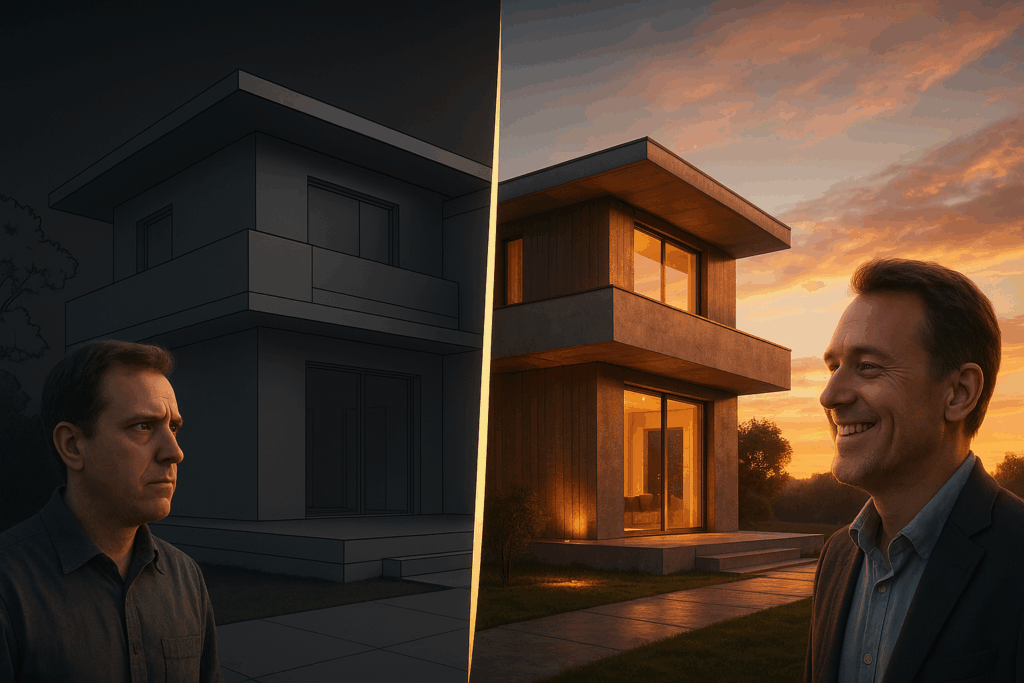
When I first began presenting my architectural concepts, I quickly realized that my models in SketchUp lacked the realism needed to convince clients. The forms were there, but the details, the materials, and the lighting felt flat – a common challenge in 3D rendering for beginners. I remember one meeting where a client asked me to show how the building would look at sunset – and I had no way to demonstrate it convincingly.
That moment pushed me to search for a solution, and that’s when I discovered V-Ray for SketchUp. It wasn’t just another plugin – it became the tool that allowed me to transform simple models into photorealistic renders. Suddenly, I could simulate lighting scenarios, apply realistic materials, and produce final renders that matched the quality of professional visualizations I admired online.
This guide is my personal account of how I installed, set up, and learned to use V-Ray for SketchUp effectively, so you can avoid the same frustrations I faced in the beginning.
What Is V-Ray for SketchUp
V-Ray for SketchUp is a powerful rendering engine developed by Chaos that integrates directly into SketchUp. From my experience, it’s not just about pressing a button to get an image – it’s about gaining control over every ray of light, shadow, and reflection in a scene.
What impressed me most was how it handled complex geometric patterns and heavy models without breaking my workflow. The software uses advanced ray tracing technology to simulate real-world lighting physics, allowing me to test multiple scenarios and achieve stunning, realistic results.
Whether I was working on architectural visualization or product design, V-Ray for SketchUp gave me the flexibility to create visuals that felt alive. It became the bridge between my design ideas and professional-quality presentations that impressed clients – making it an essential part of my workflow.
V-Ray for SketchUp System Requirements
Before I could properly use V-Ray for SketchUp, I had to make sure my system could handle the workload. Early on, I underestimated how demanding rendering could be, and my old setup crashed frequently when processing heavy scenes.
That experience taught me the importance of checking system requirements before installation. V-Ray for SketchUp performs best with a strong CPU, a capable GPU (such as an NVIDIA RTX card), and enough RAM to handle complex geometric patterns, large textures and multiple materials without slowing down. I also confirmed compatibility with my SketchUp version and operating system before proceeding.
Once I upgraded, I noticed smoother navigation, faster previews, and more stable renders – especially when testing different lighting scenarios or adjusting render settings for higher-quality results. Preparing the right hardware setup was the first real step toward achieving professional-grade photorealistic renders.
Installation and Setup: How to Install V-Ray for SketchUp (Step-by-Step)
After confirming my system was ready, I moved on to installation. I downloaded the installer directly from the Chaos official website to avoid unreliable sources.
The process was simple:
- Run the installer.
- Choose SketchUp integration during setup.
- Follow the on-screen prompts.
Once installed, I launched SketchUp and saw the V-Ray toolbar appear – a milestone moment. Next came setup. I fine-tuned the settings to balance speed and quality, then explored the extensive library of materials that came with V-Ray. This allowed me to create realistic surfaces instantly. One feature that stood out was the accurate location ad serving for sun and sky positioning, which made my exterior scenes more convincing.
By the end of setup, I was ready for my first render – and watching it come to life confirmed that I had found the right tool for my workflow.
If you plan to scale rendering later, you can easily use a render farm or explore the advantages of cloud rendering with MaxCloudON to accelerate large projects.
V-Ray for SketchUp Interface Overview: Tools and Settings Explained
When I first opened V-Ray for SketchUp, the interface seemed intimidating – but I quickly realized it was built around clear main functionalities, that made learning easier once I understood their purpose.
- Asset Editor – my main control center for managing materials, lights, and geometry.
- Frame Buffer – displays real-time render previews, which was crucial for refining details without wasting time on full renders.
- Render Settings – offers оptions to balance noise, clarity, and render time for optimal results. For example, lowering noise improves clarity, but also increases render time.
- Light Gen – аutomatically generates multiple lighting scenarios, allowing me to test how mood and atmosphere transform the same scene within seconds. This tool alone saved me countless hours of manual adjustments.
The interface gave me precise control over every ray of light, making my renders more photorealistic, convincing and professional.
Key Features of V-Ray for SketchUp That Transform Your Workflow
The features of V-Ray for SketchUp were what truly elevated my workflow and helped me create realistic renders faster and more efficiently.

- Extensive Material Library – lets you create realistic surfaces instantly, including glass, wood, metal and fabric.
- Accurate Lighting Simulation – enables you to test multiple lighting scenarios for both interiors and exteriors scenes.
- Advanced Ray Tracing Engine – its precision captures reflections, shadows and light behavior with lifelike accuracy for photorealistic results.
- Stability with Complex Models – handles heavy geometry, detailed textures, and large scenes without crashes or slowdowns.
- Render Management Tools – allow you can fine-tune sampling, noise reduction, and global illumination (GI) settings to optimize quality and speed.
These features give you full control over every aspect of rendering in SketchUp, allowing you to produce high-quality visualizations ready for client presentations or professional portfolios. If you’re already exploring GPU rendering, check out my post on the Benefits of V-Ray GPU Rendering to understand how GPU acceleration can take your projects even further.
Use Cases of V-Ray for SketchUp
Over time, I applied V-Ray for SketchUp to a wide variety of projects – from architectural visualization to product design and animated walkthroughs. Each use case revealed just how versatile and reliable this rendering engine is.
- Architectural Visualization – used for exterior and interior renders, where accurate sunlight, shadows, and reflections made my designs feel real and ready for presentation.
- Product Design – allowed me to experiment with materials, colors, and finishes, showing clients how each product would look under different lighting scenarios.
- Interior Design – helped simulate realistic lighting, reflections, and material interactions to visualize furniture and décor layouts in lifelike detail.
- Animations and Walkthroughs – made it possible for clients to virtually explore a space before construction began, adding a new level of interactivity to my presentations.
- Concept Presentations – with V-Ray’s extensive material library and Light Gen, I could quickly generate multiple visual moods for the same project and choose the most compelling version for client review
Whether I was rendering buildings, furniture, or full environments, V-Ray for SketchUp consistently delivered results that impressed clients and elevated my workflow.
For high-resolution animations or complex projects, using a cloud render farm services or cloud GPU servers helped me meet tight deadlines without overloading my local machine.
Conclusion: Why V-Ray for SketchUp Transformed My Workflow
Looking back, adopting V-Ray for SketchUp completely changed how I presented my architectural and design work. It gave me control over every ray of light, shadows, and every small detail that brings a render to life.
The extensive material library, tools like Light Gen, and realistic sun and sky simulation helped me create visuals that clients immediately connected with. Whether for architecture, product design, or animations, V-Ray consistently delivered results that met professional standards.
If you want to speed up your workflow or scale large projects, explore MaxCloudON’s V-Ray Render Farm or cloud GPU servers – perfect for high-quality, on-demand rendering performance.
Today, I can confidently say that V-Ray for SketchUp gave me the tools to produce photorealistic renders that truly impressed clients and transformed my workflow.
Sources:
- Chaos V-Ray for SketchUp
- SketchUp Official Website
- ArchDaily
- CG Architect
- DesignBoom
- Ronen Bekerman Blog
Frequently Asked Questions
What are the best render settings for beginners?
Start with medium settings to balance speed and quality. Once you understand noise and resolution controls, increase them gradually for sharper results.
How does V-Ray handle materials?
The built-in material library allows you to apply realistic textures like wood, metal, and glass instantly, without slowing down your scene.
Can V-Ray manage complex models?
Yes. With proper hardware and optimized settings, V-Ray for SketchUp handles heavy geometry smoothly while maintaining visual quality.
How can Light Gen improve lighting scenarios?
Light Gen automatically generates different lighting setups, helping you test multiple moods and times of day with one click.