
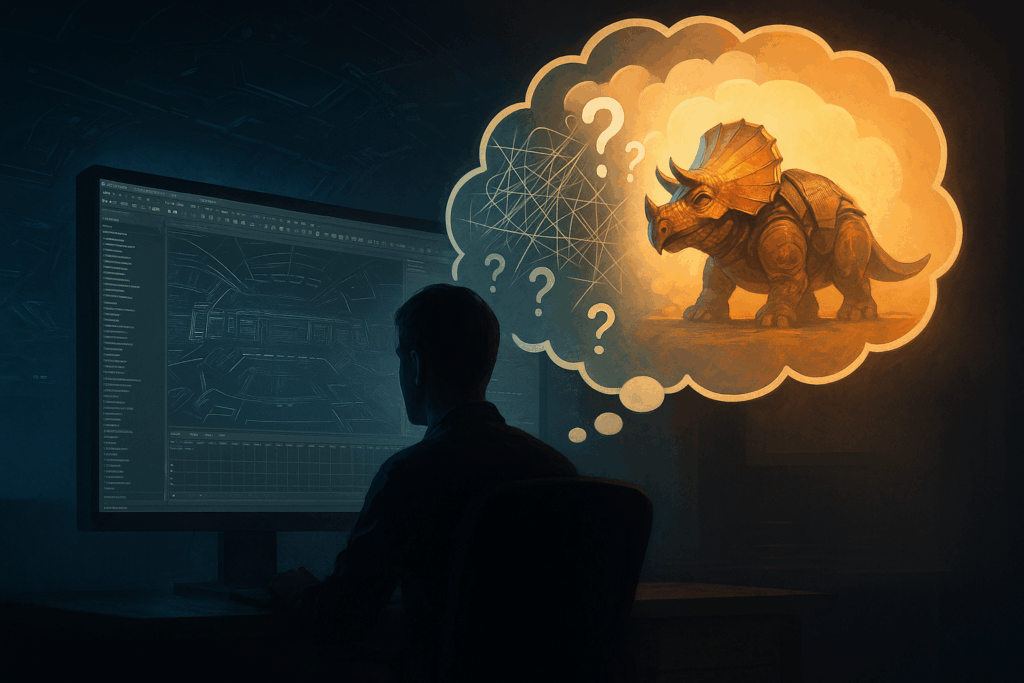
I still remember the first time I launched Maya 3D software – I stared at the screen, completely overwhelmed by the number of buttons, panels, and options. I felt like I had stepped into the cockpit of an aircraft without any training. I wanted to learn Maya 3D modeling, but I had no idea where to begin. Like many beginners searching for a reliable Maya modeling tutorial, I needed a structured path forward. I decided to break the process into small, manageable steps. That approach changed everything – it took me from confusion to creating my first 3D models, and eventually, I was using Maya in real projects for media, games, and animated content
In this guide, I will share the same step-by-step approach that helped me, so new Maya users can avoid the frustration I went through. My goal is to simplify the learning curve and show that anyone can start creating objects and models in Maya, even without prior experience. I will walk you through the basics, explain what Autodesk Maya is, how to download and install it, and how to create your first 3D model. Along the way, I’ll also share practical tips that helped me stay motivated and productive during the learning process.
3D Modeling Basics
Before I could even think about using Maya software, I had to understand what 3D modeling really meant. At its core, 3D modeling is the process of creating digital objects that have depth, height, and width. These 3D models are the foundation of what we see in games, animated films, and visual effects. Initially I thought 3D modeling was just about drawing shapes, but in reality – it’s about constructing objects from polygons, edges, and vertices, then refining them with details and lighting.
Once I understood 3d modeling basics, I realized why it was so valuable. It opened the door to both creativity and development, allowing me to contribute to the production pipeline of real media projects. Learning the basics gave me the confidence to move forward with Maya 3D modeling, instead of feeling lost in technical complexity.
If you’re new to 3D workflows, you might also find this guide useful: What is 3D Rendering?
What is Autodesk Maya (Briefly)
Initially, I didn’t fully understand why so many professionals recommended Autodesk Maya. My main challenge was choosing the right software for start learning 3D. I needed something that could grow with me, from beginner projects to professional-level work. Maya turned out to be the answer. It is one of the most advanced Autodesk products, widely used in film, games, and media industries for creating models, animated characters, and visual effects. What sets it apart is its combination of animation and modeling tools, and its seamless integration into production pipelines.
Another feature that stood out for me was Maya’s support for Universal Scene Description (USD), which made it easier to integrate my work with other tools and production workflows like MotionBuilder. Even as a beginner, I realized I was learning software used by professionals across real-world pipelines. For me, Maya wasn’t just a tool for building objects – it was a gateway to creating complete scenes where lighting, details, and models come together in a meaningful way.
Today, Maya is widely used across industries for everything from 3D modeling and rigging to rendering complex scenes, often on powerful GPU servers or cloud-based render farms for faster output.
How to Download and Install Autodesk Maya
Before I could start creating, I had to install the software correctly. The only safe way to download Maya was through the official Autodesk website. I opted for the student license, which gave me full access to the Maya 3D software at no cost. The download process was simple, but installation on my Windows operating system required attention to details. I had to check my system requirements, especially for graphics drivers and available memory.
At first, Maya wouldn’t even launch. It turned out that my graphics drivers were outdated. Once I updated them, the Maya software ran smoothly. That experience taught me a valuable lesson: that preparation matters. Without a proper setup, I couldn’t move forward to creating models, experimenting with lighting, or testing animation tools. Getting Maya installed and running was the first real step in my 3D learning journey.
Get to Know the Maya Interface
Opening Maya’s interface for the first time was overwhelming. The screen was filled with panels, menus, and unfamiliar tool options. I wasn’t sure where to begin. To make sense of it all, I broke the interface into sections. The viewport became my main area for building models, the outliner helped me organize objects and the attribute editor allowed me to adjust details like size, position, and lighting.
I also learned to rely on essential tools such as move, rotate, and scale. These functions are essential for my models and gave me control over objects in 3D space. Once I became familiar with the layout, I realized the interface was designed to support both creativity and workflow efficiency. What once I felt overwhelming gradually turned into a flexible workspace that encouraged experimentation, whether I was building animations, preparing assets for games, or contributing to larger media projects.
Learn How to Create Your First 3D Model
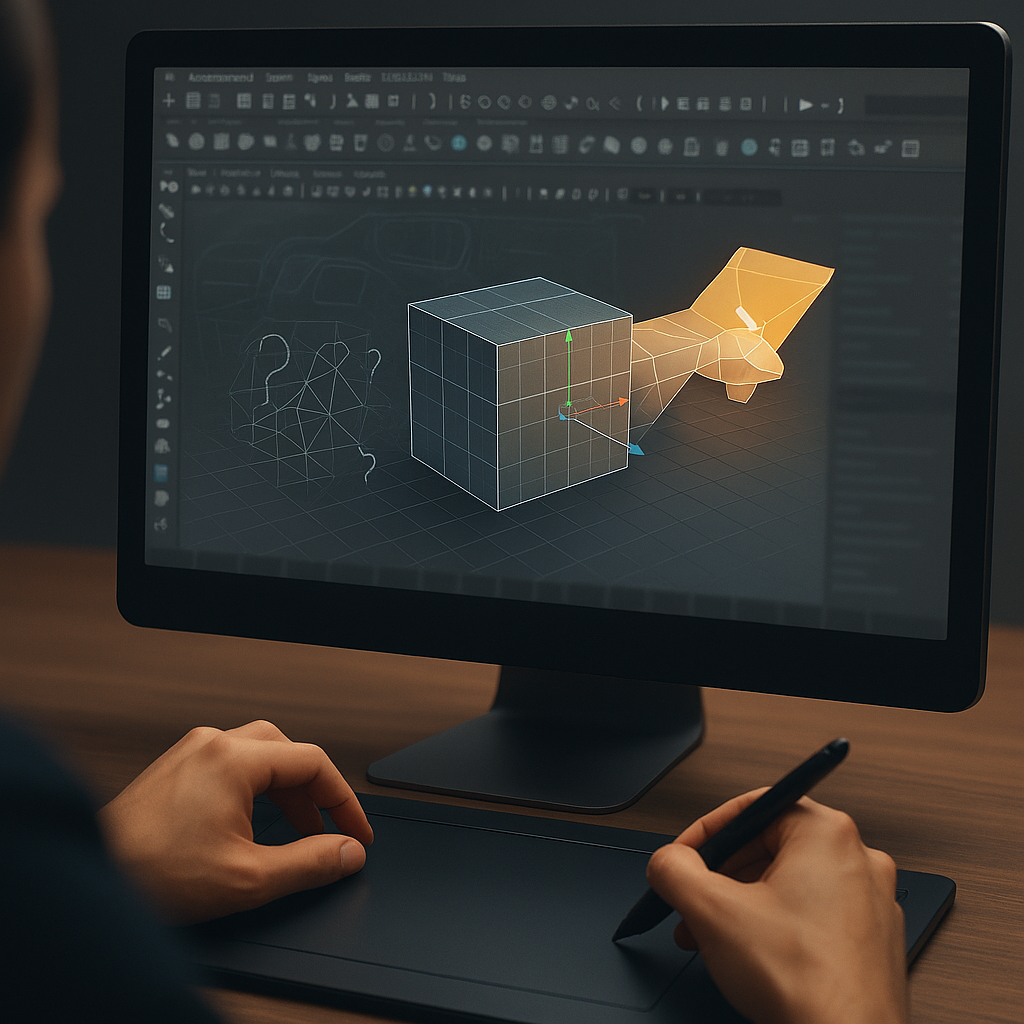
When I finally sat down to create my first 3D model in Maya, I realized the real challenge wasn’t a lack of tools – it was knowing how to use them effectively. I started with primitive shapes like cubes and spheres, combining them to build the foundation of my models. Using Maya’s modeling tools, I adjusted vertices, edges, and faces to refine the structure. Slowly, I began to see how simple geometry could evolve into something meaningful. If you’re looking for modeling software options as a beginner, check out this overview of the Best 3D Rendering Software.
Adding details was the next challenge. I experimented with beveling edges, extruding faces, and smoothing surfaces. Once the form looked right, I applied lighting to observe how shadows and highlights affected the overall appearance. This step made me appreciate how much lighting contributes to realism in Maya 3D models – and why proper Maya 3D rendering setups are so important for final output, especially in production environments. I also tested different materials to add texture, which made my models feel more alive and grounded.
What surprised me most was how quickly a basic cube could transform into something that looked ready for a game, an animated short, or even a full media project. Through consistent practice, I discovered that Maya software isn’t just about technical steps – it’s a creative process. Each new model gave me more confidence to take on complex projects, from visual effects to building polished 3D assets for a full production pipeline.
General Maya 3D Modeling Tips
After creating a few models, I realized that efficiency was just as important as creativity. One of my biggest challenges was losing track of objects in larger scenes. To fix this, I started naming every object clearly and grouping them logically. This small habit saved me hours of confusion and kept my workflow organized. I also started using reference images, which helped me build more accurate models with better proportions and details.
Another key lesson I learned was to practice with small models before attempting complex animated scenes. Working on simple props or furniture models gave me the chance to test animation tools, experiment with lighting, and refine my workflow. I also enrolled in online courses, which introduced me to Universal Scene Description workflows and more advanced techniques used in professional pipelines. These courses helped me bridge the gap between personal practice and industry standards across media, gaming, and VFX. For more on why to transition from local setups to faster cloud solutions, see Advantages of Cloud Rendering.
By combining structured learning with hands-on experimentation, I turned Maya 3D modeling into a skill that supported both my creative projects and long-term career goals.
Once you begin working on larger or animated scenes, consider offloading rendering tasks to a Maya render farm. It saves time and avoids overloading your local computer – especially when using high-resolution textures and lighting setups.
Conclusion
Looking back, Maya software completely transformed how I approached creativity and technical development. What began as confusion turned into a real skill – one that let me build models, add and refine details, experiment with lighting, and contribute to visual effects in media and games. By breaking the process into steps, following structured courses, and practicing consistently, I turned Maya 3D modeling into a practical tool for both personal projects and professional growth.
The journey wasn’t easy, but every challenge I overcame made me more confident in using Autodesk Maya as part of a real-world production pipeline – the same kind used by professionals in film, gaming, and animation.
If you’re ready to take your projects further, consider using a cloud rendering service for Maya like MaxCloudON. With high-performance GPU servers and simple upload tools, you can render your scenes faster – without the stress of local hardware limitations.
Next Steps for Learning Maya 3D Modeling
Whether you’re just getting started or ready to take your first big step, here’s what I recommend next:
Watch Beginner-Friendly Tutorials
Start creating your first 3D model by following hands-on guides:
- Official Autodesk Maya Tutorials (YouTube) – Learn directly from Autodesk
- Maya for Absolute Beginners (Course) – Covers interface, modeling, and essential tools
- Modeling a Simple Chair in Maya – A great first complete project
Experiment with Your Own Projects
Once you’re comfortable with the basics:
- Try modeling props like chairs, books, lamps, or stylized characters
- Practice working with lights and camera angles
- Start creating reusable 3D assets you can build on later
Speed Up Rendering with a Cloud Render Farm
When your scenes get heavier or you need faster feedback, try a Maya render farm like MaxCloudON. You’ll benefit from:
- High-performance GPU servers for Maya rendering
- Instant server provisioning – start rendering in minutes
- Full root access to install your 3D tools and custom plugins
- Transparent pricing for rendering
It’s a great way to focus on creativity – not hardware limits.
Keep learning, stay curious, and don’t worry about mastering it all at once. With consistency and experimentation, Maya 3D modeling becomes not just a skill – but a creative superpower.
Sources:
- Autodesk Maya Official
- Autodesk Knowledge Network
- Autodesk Area
- FX Guide
- Animation World Network
- VFX Voice
- Gamedeveloper
- Creative Bloq
Frequently Asked Questions
Is Autodesk Maya good for beginners?
Yes, Autodesk Maya can feel complex at first, but with practice and online courses, it becomes manageable. Its modeling tools and animation tools are industry-standard, making it worth the effort.
Can I use Maya for games development?
Absolutely. I used Maya 3D software to create models and objects that were later integrated into games. Its Universal scene Description support and integration with other Autodesk products like MotionBuilder make it fit well into a production pipeline for games and media.
What are the system requirements for Maya?
My local machine needed updated graphics drivers, sufficient RAM, a solid processor, and a compatible operating system. Checking requirements before download and installation will save you time.
How long does it take to learn Maya?
For me, it took months of consistent practice, starting with small models and gradually moving to animated projects. Courses helped me speed up the learning process.